Saturday, 12 October 2019

  YouTube keyboard shortcuts


Play and pause a video

Press the spacebar or the 'k' key on your keyboard to play and pause a video.

Jump to start of a video

Pressing the 0 (zero) key on your keyboard will jump to the beginning of a video. The home key also works for jumping to the start of a video.

Jump to the end of a video or go to the next video

Pressing the end key on your keyboard will go to the end of the video. If you are playing a playlist, it goes to the next video in the playlist.

Skip or jump in the video

Fast forward or rewind

If you want to fast forward or rewind in increments of five seconds, press the left or right arrow keys. If you need to jump more than five seconds, hold down the Ctrl key and press the arrow key for the direction you want to jump in ten second increments.

Skip to video sections

Pressing the number keys from 1 to 9 seeks (jumps) to that percentage of the video. In other words, 1 jumps to 10%, 2 jumps to 20%, 3 jumps to 30%, etc.

Make the video full-screen

Pressing 'f' on the keyboard switches between full-screen and normal mode.
Tip
Pressing Esc also exits full-screen mode.

Turn up and down the volume

Pressing the up or down arrow keys turns up and down the volume of the video. If you are turning down the volume and continue to hold the down arrow key, it will eventually mute the volume.
Tip
Pressing 'm' on the keyboard also mutes and unmutes the volume.


Thursday, 10 October 2019

 Remove formatting in Word from any pasted   text


When copying text from another document or Internet web page and pasting it into Microsoft Word, Word will keep the formatting of the text. For example, if you were to copy the text on this page to a Word file, this text would remain bold, and this text would remain blue. To remove the formatting in Microsoft Word from any text highlight the text and press the shortcut key Ctrl+Spacebar. The shortcut sets the text to the default font, removes the formatting, and even removes links.
Alternatively, you can use the Paste Special option or Keep Text Only option in Microsoft Word to paste the text with no formatting.
Bonus Tip: In most versions of Windows Ctrl+Windows Key + V also pastes text as plain text.

 Find files by date modified in Windows


Using the date modified feature in Windows File Explorer allows you to find any files that have been modified on a specific date or over a range of dates. Using this tip can be helpful for anyone who had lost a file, but knows when they last modified it.

How to find the date of modified files

  1. Press the Windows key+E on the keyboard to open File Explorer.
  2. On the left side scrolling menu, select the drive or folder in which you'd like to view dates (1).
File Explorer in Windows 10.
  1. Then, on the right side of the screen, type datemodified: (make sure to include the colon) into the search box (2).
  2. You should see a menu appear that is similar to the one shown below.
Date modified menu in Windows.
  1. From here, you have a few options:
  • View a single day - Navigate to the day you're interested in and click it.
  • View a range within a month - Click and hold down your left mouse button on the starting date, and then drag your mouse cursor to the ending date.
  • View a range over a long period - If you need information that spans more than one month or year, you utilize a specific format in the search box. As an example, if you'd like to view the modified dates between October 13, 2018, and November 10, 2018, you would type: datemodified:‎10/31/‎2018 .. ‎11/10/‎2018 exactly as it is written there, and then press Enter.

 Enter the same text into multiple Excel cells at   once


In Microsoft Excel, you can enter the same data or text into multiple cells at once using the below simple steps.
  1. Highlight all the cells that you want to have the same text.
  2. Type the text you want.
  3. After typing the text, instead of pressing Enter, press Ctrl+Enter

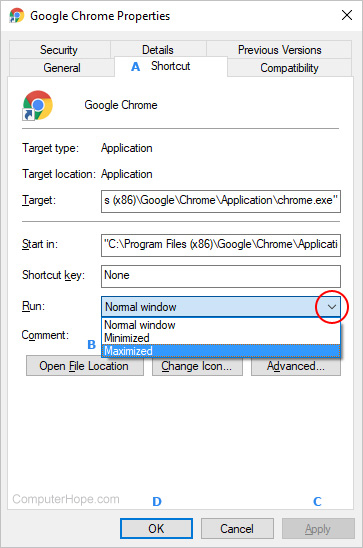
Maximizing the program on launch

  1. In the Properties window, click the Shortcut tab (A).
  2. Locate the Run: section, and then click the down arrow on the right side (red circle).
  3. In the drop-down menu that appears, choose Maximized (B).
  4. Click Apply (C), and then OK (D).
Open shortcut window as maximized in Windows

 How to change my browser's homepage


Internet Explorer

To change the homepage in the Internet Explorer browser, follow the steps below.
  1. Open the Microsoft Internet Explorer browser.
  2. Click Tools Internet explorer tools icon in the upper-right corner.
  3. Select Internet Options from the drop-down menu that appears.
  4. Under the General tab, type the URL of the web page you want to set.
  5. Click Apply.
  6. Click Ok.
Tip
If you would like the page you have open set as your homepage, click the Use Current button.
Tip
To see if your new homepage is set correctly, click the Home IE Home Icon icon.
Firefox

Mozilla Firefox

To change the homepage in the Mozilla Firefox browser, follow the steps below.
  1. Open the Mozilla Firefox browser.
  2. Click the Menu Firefox Menu Icon in the top-right corner of the screen.
  3. Select Options from the drop-down menu that appears.
  4. Under the General Tab in the Home Page field, type the URL of the web page you want to set.
  5. Close the Options tab.
Tip
If you would like to set the page you currently have open as your homepage, click the Use Current page button.
Tip
To see if your new homepage is set correctly, click Home Firefox Home Icon icon.
Chrome

Chrome

To change the homepage in the Chrome browser, follow the steps below.
  1. Open the Chrome browser.
  2. Click Menu Chrome Menu Icon in the top-right corner of the screen.
  3. Select Settings from the drop-down menu that appears.
  4. Under the On startup section, click the button next to Open a specific page or set of pages.
  5. Next to that, select Set pages.
  6. Type in the URL of the site you'd like to become your homepage and press Enter.
  7. The site should be added to the list. Select the site and press OK.
-OR-
  1. Open the Chrome browser.
  2. Click the Menu icon Chrome Menu Icon 2 in the top-right corner of the screen.
  3. Select Settings from the drop-down menu that appears.
  4. Within Settings, in the Appearance section, check the box next to Show Home button.
  5. Click Change next to the address shown below the Show Home Button.
  6. In the window that appears, click the circle next to Open this page:
  7. Type in the web address of the page you like to set as your homepage.
  8. Click OK.
Tip
To see if your new homepage is set correctly, click Home Chrome Home Icon icon.
Tip
If you would like to set the page you currently have open as your homepage, click the Use Current page button.
Safari

Safari

To change the homepage in the Safari browser, follow the steps below.
  1. Open the Safari browser.
  2. Click Safari in the upper-left corner of the screen.
  3. Select Preferences from the drop-down menu that appears.
  4. Under the General tab in the Home page field, type the URL of the web page you want to set.
  5. Close the current window.
Tip
If you would like the page you have open set as your homepage, click the Set to Current Page button.
Tip
To see if your new homepage is set correctly, click Home icon.
Opera

Opera

To change the homepage in the Opera browser, follow the steps below.
  1. Open the Opera browser.
  2. Click the Opera menu butotn button in the upper-left corner.
  3. Select Settings from the drop-down menu that appears.
  4. In the left window, select Basic.
  5. Under the On startup section, click the button next to Open a specific page or set of pages.
  6. Next to that, select Set pages.
  7. Type in the URL of the site you'd like to become your homepage and press Enter.
  8. The site should be added to the list. Select the site and press OK.
Tip
If you would like to set the page you currently have open as your homepage, click the Use Current page button.

Wednesday, 9 October 2019


 How to automatically repeat YouTube videos

YouTubeOn a desktop or laptop computer, YouTube allows you to automatically repeat a video you're watching. Additionally, there are free, third-party services that can assist you with repeating videos. The following steps will teach you how to put any YouTube video on repeat.

Loop a video within YouTube

YouTube now allows you to loop any video by right-clicking on the video or play button, and then selecting the Loop option from the drop-down menu that appears.

How to put a YouTube video on repeat

Editing steps

  1. Erase everything in front of youtube. In the example above, "https://www" is the part you'd need to delete.
  2. After youtube, type repeat to make the URL look like the one shown below, and then press Enter.
youtuberepeat.com/watch/?v=dD40VXFkusw 
  1. After pressing Enter, your browser opens a page with a URL similar to the one shown here: http://www.Jaimahakalrepeat.com/watch/?v=dD40VXFkusw
  2. This page will repeat your video until it is closed.

 Top 10 keyboard shortcuts everyone should know


Ctrl+C or Ctrl+Insert

Both  Ctrl+C  and Ctrl+Insert will copy highlighted text or a selected item.


Ctrl+V or Shift+Insert

Both the Ctrl+V and Shift+Insert will paste the text or object that's stored in the clipboard.


Ctrl+V or Shift+Insert

Both the Ctrl+V and Shift+Insert will paste the text or object that's stored in the clipboard.

Page Up, Space bar, and Page Down

As you may have guessed, pressing either the page up or page down key moves to the next or previous page. When browsing the Internet, pressing the spacebar moves the scrollbar down a page. Similarly, Shift+spacebar moves the scrollbar up one page.

How to test a hard drive for failures


Software solutions

Below is a listing of a software programs available that are designed to test your computer's hard drive for errors.
· ScanDisk - Users running Microsoft Windows who're still able to get into Windows can utilize the already installed disk checking tool ScanDisk to find and repair any errors on their hard drive.
· Chkdsk - Another Windows command line utility to test the hard drive. If you're unable to boot into Windows, boot from the Windows CD, enter the Recovery Console, and run chkdsk /f to fix errors.
· TestDisk - Fantastic, free, and open-source utility to test and fix different hard drive errors.

Bigger Thumbnails


Since Windows ME we've had the option of having folders in thumbnail view. This creates a little picture preview in the folder. Very handy if you have gigs of pictures on your hard drive. Have you ever wished that they were bigger? Well then, you're in luck today because I'm gonna tell you how.
This will require going into your registry, so proceed with caution.
To start the Registry Editor, go to Start/Run and type in "regedit" (without the quotes) and click OK. Next you'll need to follow this trail:
HKEY_CURRENT_USER \ Software \ Microsoft \ Windows \ CurrentVersion \ Explorer \
Now, look for "ThumbnailSize". If it isn't there, then right-click an emty area in the right pane then select " New>DWORD " and name the value "ThumbnailSize".


Double click ThumbnailSize and enter a number between 32 and 96 (these are hexidecimal values).


This will change the setting for the current user only. To change it for everyone you'll need to be logged in as administrator and change/create the value under

HKEY_LOCAL_MACHINE \ Software \ Microsoft \ Windows \ CurrentVersion \ Explorer \

You may need to restart for the change to take effect.

Prohibit access to the Control Panel. –


We realize that the Control Panel in Windows Xp contains many tools for the system value adjustment. Therefore, this is an important thing to prevent somebody with no computer skill accessing to the Control Panel and setting wrong system values. Someone may spoil your computer. We can disable others to access the Control Panel by these steps.

# Go to Start > Run.


Type the command gpedit.msc then press Enter.


# Now Windows bring you to the Group Policy page. Click on Administrative Templates which is in the left hand of the Goup Policy page.

# Double click on the Control Panel folder which is in the right hand of the page.


 Double click on the message “Prohibit access to the Control Panel”.


* Now it appears Prohibit access to the Control Panel Properties window. Click on setting tab then choose Enabled.
* Click Apply and Ok button.


Prevent Forgetting window Password login


How To Create Password Recovery Disk?


To prevent forgetting window password login, you have to create the password recovery disk which is made by these steps.
In the Control Panel, select User Accounts.
Choose the account you want to create the password recovery disk.
Now click on the “Prevent a forgotten password” which is in the top left of the window.
Then the Windows launch “Fotgotten Password Wizard“. Now you follow the step by clicking “Next“.
Insert formatted disk in drive A. Then click Next.
Type the password and Finish !


How To Recover Window Login Password in Welcome Screen?


Click the password user list which is in the disket.
Click on the Question Mark Button. (?)
It appear the message “Did you forget your password ?“. Now you click the message “Use your password reset disk“.
You are brought to Password Reset Wizard process. You just pursue the step. Your PC computer are working again.


Keep and Increase Your Hard Disk Space To Speed Up Your Computer


Increasing hard disk space is not difficult you think. The free space will be used to be temporary memory when RAM is insufficient to proceed and also Windows need to backup some system configuration and other information to System Restore (If a computer has some problems, it will need to use this system function.), so this way is related to your computer speed while using it. Fortunately, Windows XP provides the tools to check and clear the unnecessary files and program in your computer such as temporary file created by Windows system while you are surfing Internet or any activity doing on your computer, many files in the Recycle Bin and any program that you don’t need to use them anymore. Other reason to keep more space is to be capable to store more files and document you want. Therefore we have six ways to do. Ok, let’s start !


1. Click on Start Menu -> All Programs -> Accessories -> System Tools -> Disk Cleanup, Now Windows XP has to calculate the space you will get after the process, then you can choose the file and program to clean them up and click OK button.


2. Clear all temporary files that you have never used anymore. The easiest way is to open the folder containing all the temporary file and delete them. Okay, follow the steps. Now you must close any program you are using and click on Start -> Run, then enter %temp% to open the folder and delete all files.


3. Removing unnecessary programs. Go to Control Panel > Add or Remove Programs ,then uninstall any program you don’t want to use it again.

4. Windows needs to reserve the space for System Restore but it might be over for your computer, so we can decrease the space for System Restore. Don’t worry about this way, your computer will be working normally, we only decrease but not disable. Now right click on My Computer icon, then select Properties -> System Restore and click on Settings button to adjust the percent of space reserved by Windows. 4-5 percent is suggested.


5. Remove program coming with Windows XP after setting up it. These programs are hidden in the list of Add or Remove Programs. 

Therefore you must release them by clicking on Start -> Setting -> Control Panel -> Folder option, then select View tab and check the box that has the message “Show hidden files …”. Now go to Start -> Run and type inf then press Enter key to find the .inf file format. System will open new window and you can found sysoc.inf file in this folder. Double click on sysoc.inf file to open (Normally open with notepad).

 Find the program you want to remove and delete the text, hide, in the same line. Okay, you can see the program coming from Setting up Windows, go to Add and Remove Programs again and remove them.


6. Adjust the maximum size of Recycle Bin. Normally the Windows System reserve the hard disk space for Recycle Bin about 20% that is over for me and you, so we can decrease it to be 4% for saving hard disk space 16%. Right click on Recycle Bin icon on Desktop and choose Properties tab. Now you can adjust the size you want it to be.


Increase Life Of HardDisk


Taking care of your hard disk is important because this is the place where all the data is stored and once the hard disk crashes, data in most cases is not recoverable. There are data recovery softwares and programs which recover data from crashed hard disks but that is not for normal computer users.
But why do hard disks crash and what can be done to prevent them from crashing?. At the same time how can a hard disk be made more efficient? 

Here are the answers.
Hard disks crash due to many reasons. Voltage fluctuations, physical impact, improper alignment and of course mechanical failure due to wear and tear of internal parts. Let us start one by one and get the answers to the above problems.

1. Voltage fluctuations or spikes as they are called can be prevented by using voltage stabilizers or spike guards. This will limit the damage to the hard disk to a great extent.

2. Physical impact can be prevented by handling the hard disk carefully when installing/ re-installing. When installing the hard disk care should be taken to see that it sits perfectly horizontal and that it does not vibrate or shake once the computer is started.

3. The natural wear and tear of parts can be limited by defragmenting your hard disk from time to time.But what is defragmentation?

All newly created files are stored in various places on the hard disk in a single cluster ( contiguous file ). But, as the number of files and programs increase, these files are not stored as one contiguous file but broken down and scattered in various places on the hard disk. In short files get fragmented. When these files are accessed by the user, the head on the hard disk moves to and fro to locate these fragments. These fragmented files puts lot of mechanical pressure on the internal parts of the hard disk. This leads to crashes.

To start disk defragmenter from the start menu, click the start button and follow this path (All Programs / Accessories / System Tools / Disk Defragmenter). A minimum of 15 percent free space on your disk is needed for disk defragmenter to run. The disk can also be defragmented automatically by using schedule task. This program can can be accessed via system tools.

4. Power management tool can also be used to enhance the life of hard disk. To access this program go to start / control panel / power options and set the parameters for various hardware devices.


5. Disk cleanup increases the efficiency of the hard disk. So delete unwanted files and programs regularly.


Follow the above rules to increase the life of you hard disk.


How To Recover Deleted Digital Image Files


If you are a digital photographer or digital camera user, this tip will be helpful to you. Sometime you may delete your image file from memory card accidentally and you don’t backup them yet. Feel dizzy? Don’t worry about it anymore.

There are many software recovering the files for this issue and the important thing is it’s free for all. So, this computer tips will let you know the best three software to recover your digital image file like jpg, bmp and any file format.

 But your memory card has to be in the condition that it does not be replaced by the other files after deleting them. The software list and links to download are below.

- Recuvahttp://www.recuva.com/

- Undelete Pluschttp://www.undelete-plus.com/

- Zero Assumption Digital Image Recoveryhttp://www.z-a-recovery.com/digital-image-recovery.htm


Hide Specific Drives in Computer


This tutorial illustrates how to hide and show your computer drives from Windows XP. You can hide or show as you want both drives in your computer and drives in the computer network. This way can be safe for data in your computer and prevent others from accessing to your drives that may contain important information. This example I will hide drive D and you can apply this method to another drive you want, just change a value that I will explain “how to” in detail. Let you hide drives now.

* Access to the Registry Editor program, running regedit.

* Find the path like below,
HKEY_CURRENT_USER\Software\Microsoft\Windows\CurrentVersion\Policies\ Explorer

* Right click on the Explorer folder and select New > DWORD Value.

* Name the registry NoDrives.


# Double click on NoDrives which is in the right page.
# In the DWORD Value window, select Decimal.


* In this case I want to hide drive D, so I must fill 8 in Value data. The number you filled varies with drive you want it to be hidden. If you want to hide the other drives, you must put the drive-related number like below,
A=1, B=2, C=4, D=8, E=16, F=32, G=64, H=128, I=256, J=512, K=1024, L=2048, M=4096, N=8192, O=16384, P=32768, Q=65536, R=131072, S=262144, T=524288, U=1048576, V=2097152, W=4194304, X=8388608, Y=16777216, Z=33554432, All drive=67108863

For example, I can hide drive J only if I put the number 512 under selecting Decimal. What to do in case I prefer to hide more than one drive ? That is easy just plus the numbers. To illustrate, I want to hide drive C and E so I put the result number of 4 plus 16 that is 20.


* Click OK button and close the Registry Editor program.
* Log off and Log on your computer. Finish !


Convert FAT32 to NTSF


I have an easy way to change your hardisk file system without formatting. “Convert FAT32 to NTFS”.

- Open Run box, go to Start > Run

- Type Convert D: /FS:NTFS , D is a computer’s drive you would like to convert.

- You are brought to a screen which you must follow the steps, then Windows restart itself. Finish!


Change Internet Explorer Logo


When you are surfing internet by Internet Explorer(IE), IE Logo in IE toolbar will indicate that Internet Explorer is working. Do you believe that you can change the logo image to whatever you want?

 Before you start to change it, you have to prepare your logo image. Your logo image have to be Bitmap file format, 22×22 pixel, and 256 color (16bit). 

You may use the ACDSee Program to costom the image. Ok, I suppose that you already had a logo image. Let’s begin now.

Accesing Remote Computer

For the Windows Xp Professional. It supplies a software called Remote Desktop that is used to access your remote computer through the internet network or your private network (LAN and VPN). Imagine that you were sitting at home and working with your computer which is in your office so you could use any programs and access to any files you want as if you were working in the office. What a fun work it is ! You might know many software used for accessing your remote computer but they are released for selling. Now we do not have to waste our money for this function. If the Windows Xp Professional is installed in your computer, the Remote Desktop software is automatically installed in your computer as well. Ok, now I give you an example to access my friend’s computer in the LAN (Local Area Network) Network.

Setting my friend’s computer : What will I do to my friend’s computer ?

* Log on as the administrator in my friend’s computer.
* Right click on My Computer icon and then select Properties menu.
* Click the Remote tab.
* Select the Allow users to connect remotely to this computer in the check box like the picture below and then click OK.


If my friend’s computer has Windows Firewall secure the computer, I must allow the Remote Desktop software in the Windows Firewall’s Exceptions tap. See the picture below.


* Go to the Control Panel and open the Network Connections then double click on Local Area Connection in order to get this computer’s LAN IP Address.


To access my friend’s computer : I will steal anything from my friend.


* Go to Start > All Programs > Accessories > Communications > Remote Desktop Connection .
* Now put LAN IP Address of my friend’s computer and then click Connect button.


*And log on page I put the username and password of my friend’s computer.
* Then finish and enjoy stealing my friend’s movie and music files. ha ha ha !

Note :

* The remote computer must set the password to log on as the administrator.
* You can change LAN IP address to the computer name.
* You can change LAN IP address to WAN IP address so as to access the remote computer through the internet network. The remote computer must have the actual IP address called WAN IP address.
* To end your Remote Desktop Session, Click Start > Log Off and then click Log Off button.


Speed up Internet Surfing


We can increase speed for surfing the internet in several way but today I have an easy way for you to speed up your internet surfing. The Windows XP normally limit the internet speed by reserving a part of bandwidth. In this easy way I just only change the Bandwidth Limit value to zero.

# Go to Start > Run.
# Type gpedit.msc then click OK. Windows XP will lead you to Group Policy page.
# In your left hand of the page, click on Administrative Templates which is under Computer Configuration.
# Double click Network which is in the right hand of the page.
# Double click QoS Packet Scheduler.
# Double click Limit reservable bandwidth.
# Select the Enabled option.
# Now you are able to see the message Bandwidth Limit (%):


Tuesday, 8 October 2019

Key Board Tips

Fast Access to the Desktop

To get an Explorer view of the Desktop
1. Press Ctrl-Esc or click the Start button
2. Press R to go to Run. Note: If you are using a Win keyboard, you can get to this point by pressing Win+R .


My Computer from the Control Panel

If you're in Control Panel, hitting the Backspace key will switch you into the My Computer folder.
________________________________________
Undo
Press CTRL + Z to undo things like renaming a file in Explorer
________________________________________

Minimizing All Windows

To minimize all windows:
1. Press Ctrl-ESC to bring up the Task Bar
2. Press Alt-M
This makes it a lot easier to minimize windows when all your open applications are full screen.
________________________________________

Shortcut to System Properties

To access the System Properties screen quickly, simply hold down the ALT key while double clicking on the My Computer icon.
While holding the windows key, press the Pause / Break key.
This will open up the System Properties box.
From here you can easily get to the Device Manager
________________________________________

Duplicating the Right Mouse Click

Pressing the Shift-F10 key will be the same as clicking the right-mouse button.
________________________________________
Accessing Programs from the Start Button

To access your programs more quickly from your start button, with out aid of a mouse, hit ctrl+esc to open your start menu.
Then, type the letter for the directory you are looking for.
For example, to access the ever popular game of solitaire, CTRL+ESC, then "P" for programs, "A" for accessories, "G" for games, then "S" for Solitaire.
If there is more than one entry for the letter, keep hitting the letter until you reach your desired location. Then, hit enter.
________________________________________
Quickly Starting Explorer

You can quickly start an explorer session by holding down the Windows key on a Microsoft Keyboard and pressing the E.key
________________________________________
Remapping the Keyboard

You can download Keyboard Remap (20 K) from Microsoft to reassign you keystrokes.
With this you can also assign a key to function like the Windows key on the Microsoft keyboards.
________________________________________

Bringing up the Properties Window

While holding the ALT key double click on an icon to bring up the properties.
________________________________________

Resizing and Moving a Window

To Resize or Move a window:
1. Press Alt-Space
2. Press the S key - To Resize
3. Press the M key - To Move
You can now use the arrow keys to resize or move the window
________________________________________

Key stroking is faster than mouse moving

1. In desktop you can press "m", "My Briefcase is highlighted, press "enter" will open this applet.
2. If you do not press "enter",
3. The next "m" key stroke will highlight "My Computer".
4. "Ctrl"-"Esc", press "P" for Programs, "enter","M""enter", you get to the first program or folder that starts with "M"
5. Other applets will also be opened the same way.
________________________________________

Explorer Shortcut Keys

• F4 - Displays the Combo Box
• F5 - Refresh the display
• Ctrl+Z - Undo last action
• Backspace - Go up one directory
________________________________________

Quickly Search for Files

To quickly open up the Find all Files window
1. Press Ctrl+ESC ESC
2. Press F3
________________________________________

To copy a file with a Mouse/Keyboard combo

Drag the file while holding down the CTRL key - A + will appear on the icon
To move a file with a Mouse/Keyboard combo
Drag file while holding down SHIFT key - Nothing appears on the icon
If moving a icon with the mouse and an arrow appears, it will create a shortcut.
You can press shift or ctrl at anytime during the drag
and it will change this little part of the icon.


Google Chrome feature shortcuts.

Action
Shortcut
Open the History page in a new tab
Ctrl + h
Open the Downloads page in a new tab
Ctrl + j
Open the Chrome Task Manager
Shift + Esc
Set focus on the first item in the Chrome toolbar
Shift + Alt + t
Open a link in a current tab (mouse only)
Drag a link to a tab
Save the current webpage as a bookmark
Drag the web address to the Bookmarks Bar
Open a link in a new window
Shift + Click a link


Internet Explorer Shortcuts


Natural Keyboard Shortcuts